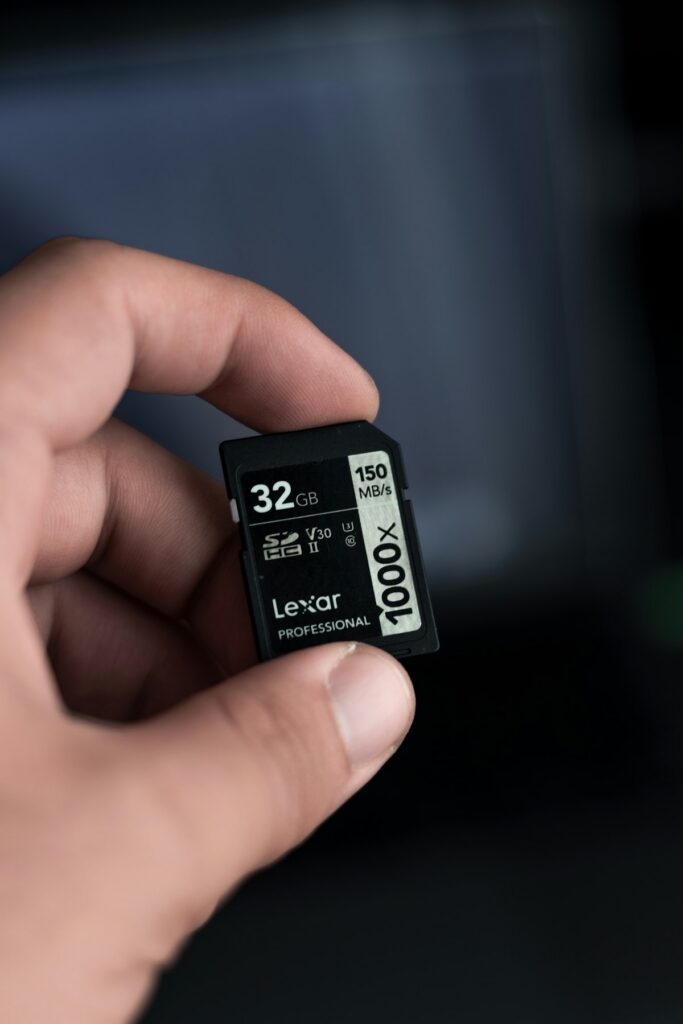
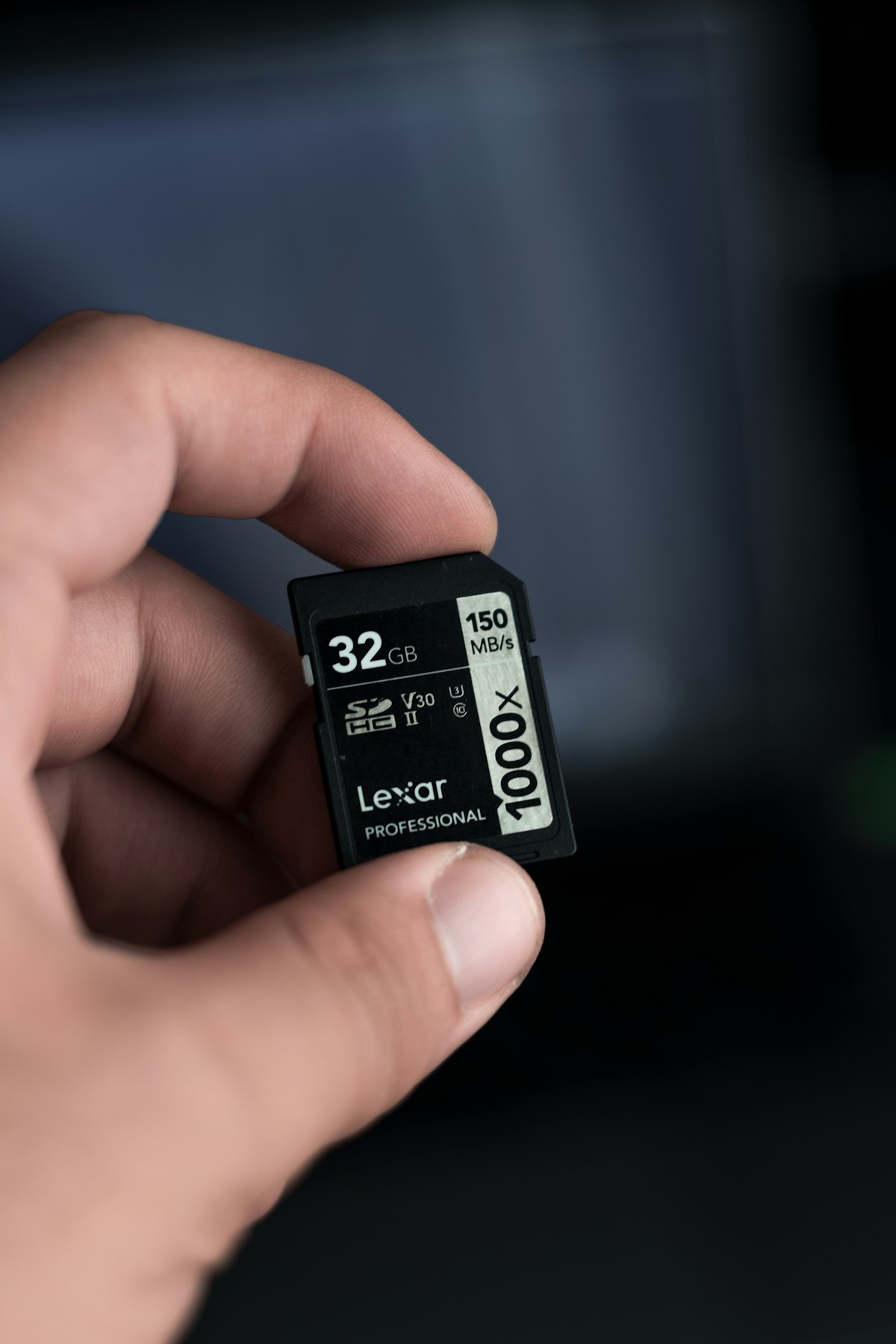
Start a memory-card comparison with the device’s requirements. A larger capacity or a faster-looking number cannot establish that a card fits the slot, uses the required interface or supports the recording mode you intend to use. Write down the exact camera, console or other device model before comparing packages.
Check the card format before the capacity
Find the required card type in the device’s manual or official compatibility page. Keep the physical format, supported card standard and capacity limit on separate lines of your shopping list. A package that includes an adapter still needs to meet the device’s requirements; the presence of an adapter does not establish electronic compatibility or the promised performance.
Check the selected product option carefully. Similar listings can offer different capacities, packs or included readers. Count the actual cards separately from adapters and storage cases so that a larger piece count does not become a mistaken card count.
Match the speed-class family
The SD Association’s speed-class guidance distinguishes Speed Class, UHS Speed Class, Video Speed Class and SD Express Speed Class. These markings describe minimum write performance under defined conditions. A prominent advertised transfer speed answers a different buying question.
Find the symbol required by the host device and match that same class family at the required level or higher. Do not substitute a similarly numbered symbol from another family. Also check the bus or interface requirements: the device and card must support the combination needed for the intended recording mode.
| Package detail | What to compare |
|---|---|
| Capacity | The device’s supported limit and the space needed for your files. |
| Card format and standard | The exact type named in the device instructions. |
| Speed-class symbol | The required class family and minimum level. |
| Advertised transfer speed | The stated test conditions and compatible host or reader. |
| Included accessories | Actual cards, adapters, reader and case counted separately. |
For Switch 2, look specifically for microSD Express
Nintendo’s microSD Express FAQ says Switch 2 supports microSD Express cards up to 2 TB for its supported expandable-storage uses. A standard microSD card from an earlier Switch is not a replacement for that requirement.
Downloadable software, updates, downloadable content, screenshots and captured video are among the supported card uses. Game save data stays in system memory and cannot be copied to the card. Keep that distinction in mind when deciding which storage problem a larger card would solve.
Nintendo also recommends using a single microSD Express card rather than treating several smaller cards as one expandable library. Read its transfer instructions before moving to a larger card; do not assume files from multiple cards can simply be combined.
Compare the complete purchase
- Record the exact device and the card requirements from its current instructions.
- Choose a supported capacity based on the files you intend to store.
- Match the required speed-class family and interface.
- Check whether a compatible reader or adapter is needed and included.
- Compare the delivered total for that complete setup, including tax and shipping.
Keep a copy of the selected model and package contents with your order details. Follow the device maker’s preparation and transfer instructions, and keep important files backed up before changing or formatting storage.
Use our shopping tools to organize a complete-purchase comparison. When comparing current offers in the Amazon deals hub, return to the same device requirements rather than choosing on capacity alone.